 gbGallery
|
 This page provides the online help for gbGallery, which provides
an extremely easy-to-use, but very powerful, method of creating a gallery of images,
uploading the gallery to your server, and emailing the web page address to your friends so they can
view the images!
This page provides the online help for gbGallery, which provides
an extremely easy-to-use, but very powerful, method of creating a gallery of images,
uploading the gallery to your server, and emailing the web page address to your friends so they can
view the images!
gbGallery has features rivaling the best commercial gallery software available, including:
|
- Very simple user interface for creating the gallery
- Easy page-to-page navigation within the gallery
- Select all or part of a folder of images
- Several gallery file formats, which provide
- Index pages with thumbnails of images
- Individual pages for each image
- Ability to display images in any order
- JPG image support (with quality setting)
- BMP/GIF support (exported as JPG images)
- Special image effects, including rotations
- Batch file renaming
|
- Built-in FTP capability
- Built-in Email capability
- Automatic HTML file generation
- Image preview
- Thumbnail size control
- Image size control
- Title/Description for each image
- Title for each thumbnail
- Windows Explorer Integration
- Online Updates
|
| |
| |
| |
| |
An activation key for gbGallery may be purchased online for $20 using
PayPal or a credit card (Visa/Mastercard/AMEX/Discover).
|
|
 Return to top of document
gbGallery Overview
gbGallery uses a list of files you provide (a complete folder or selected files
from that folder) and creates the pages and image files needed to provide an
organized presentation of the images. This typically consists of thumbnails
and full-sized images combined into standard web pages which can be viewed
by any browser (on your PC or on the Internet). On pages with thumbnails,
clicking on a thumbnail will display the full-sized image.
gbGallery can read JPG, BMP, and GIF files. gbGallery converts the images to
JPG images (both thumbnails and resized images). The original image files
files are not changed in any way. You control the sizes of both the thumbnails
and images.
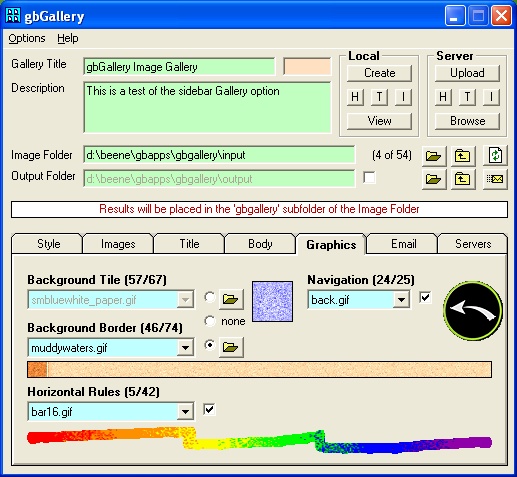
gbGallery provides many additional settings to help you fine tune your gallery
pages. The settings tabs, shown next, are normally hidden but may be displayed
at any time by using the menu Options > Additional Settings. The details of
the additional settings tabs are discussed in detail later.
Here is an image of the main window, expanded to show the settings tabs.
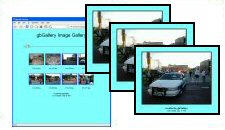
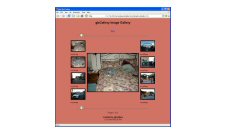
gbGallery provides 5 basic gallery formats, as shown in the following
thumbnails.
Standard
| PopUp
|
|
|
Horizontal
| Vertical
| Sidebar
|
You can view the galleries on your PC with your web browser or have gbGallery transfer the files to
your web site so that others can view them on the Internet.
gbGallery can also email the web address to anyone you choose. A complete email
address book capability is provided.
Return to top of document
Getting Started
When gbGallery is started for the first time the only setting you must make is
to select the folder containing the images to be included in the gallery. At that
point you can simply press the "Create" button and gbGallery will create a complete
gallery of files in a subfolder beneath the selected image folder (you can
choose to put the gallery files into any existing folder).
The entire set of gbGallery files is contained within a single directory,
which has all the files needed to view the gallery of images.
Your original image files are left untouched. By default, the output directory
is called 'gbgallery' and is created beneath the input folder.
gbGallery's default style will create a fully indexed, easy-to-navigate set of
gallery files ready for viewing or for upload to your server. Press the
"View" button to open the gallery in your default browser.
Instructions on how to transfer the files to your server are shown later in
this help file. Server information is only needed if you wish to upload the
files for viewing on the Internet or if you wish to email the location of the
gallery to your friends.
Windows Explorer Integration
gbGallery can also be started from within Windows Explorer. Simple right-mouse-click
on the folder containing the images then press SendTo > gbGallery
to have gbGallery open up in the selected folder. You can also right-mouse-click
on any file and gbGallery will open up in the folder containing the file.
Return to top of document
Sample gbGallery Output
gbGallery supports five built-in web page styles, selected from the dropdown control
in the first settings tab. All of the styles provide complete, easy-to-navigate galleries.
The look and feel of the output may be modified using the many options available from
the settings tabs.
In general, an index page is created which contains thumbnails of the original images.
The thumbnails are linked to additional pages which present a larger version of the image,
along with any title or descriptive information you have entered.
Some of the styles use a single page format, where multiple thumbnail images are displayed
around a central larger image. Selecting a thumbnail displays the larger version of the
image on the same page. If the gallery consists of more images than will fit on one
page, multiple pages are created, with navigation provided to move from page-to-page.
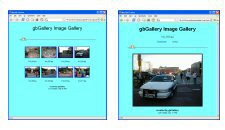
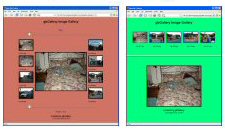
Examples of the five gbGallery formats are shown here:
- Standard
Provides an index page with all thumbnails presented
on a single page. Click on a thumbnail to view an individual
image page. The image pages have Previous/Index/Next
nagivation links.
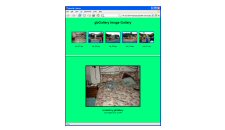
- Horizontal
A single page is provided, with all thumbnails shown
in a scrollable frame across the top of the page.
Click on the thumbnail to see the image details in
the frame below.
- Vertical
A single page is provided, with all thumbnails shown
in a scrollable frame vertically on the left side
of the page. Click on the thumbnail to see the image
details in the frame to the right of the thumbnails.
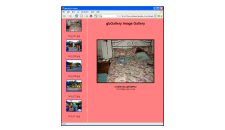
- Side
A single page format is used that presents up to 8
thumbnails - 4 in each of two vertical columns on
the sides of the page - with a large image
of the selected thnumbnail in the center of the page.
If the gallery has more than 8 images, additional
pages are created, including navigation links between
the pages.
- PopUp
A multi-page format. The index page has a thumbnail
of every image. Clicking on a thumbnail calls up
a popup window that contains the full size image.
Return to top of document
Main Window
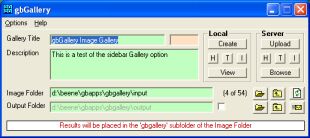
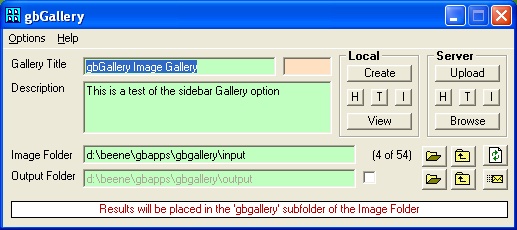
The main window, with its various controls and menu settings is shown below:
|
|
|
Options
Additional Settings
-----
Display Image Title/Description
Display Filenames
Use Colors
Allow Individual Creation
Use Built-In Email Client
-----
Open Image Folder
Explore Image Folder
-----
Open Output Folder
Explore Output Folder
Delete Files in Output Folder
|
Help
Email Author
Web Site
Online Help
Online Update
-----
About
|
Main Window Controls
- Gallery Title
Single line of text placed at the top of the index and image HTML files
- Gallery ID
gbGallery files are placed in the specified local and server folders.
Each time a gallery is created the pre-existing files are written
over by any new gbGallery files which have the same name. So normally
different galleries would be placed in separate folders.
In some cases a user might want to have two sets of gallery files in the same folder.
The Gallery ID is used to enter a short alphanumberical prefix which will be
attached to all gallery file names (images, index page, image pages, and thumbnails).
Each prefix will then create a unique set of files which will not be overwritten
when another gallery is created, unless the same prefix is used.
- Description
Multiline text placed at the top of the index page
- Image Folder
Directory containing the original images. gbGallery does not make
any changes to the original files.
- Selection Label
Located just to the right of the Image Folder, this shows how many images
are in the folder and the current setting for how many are selected for
inclusion in the gallery. The default is to include all images withing
the image folder.
- Select Image Folder
Opens a dialog window that allows selection of the image folder.
The image folder may not be typed in. Use of the dialog window
ensures that a valid folder is selected.
- Up One Folder
Changes the image folder to the next higher folder. This is provided
as a convenient tool for navigation.
- Refresh
Re-reads the input folder, discarding any settings/changes made since the
folder was last read. This provides a convenient way of reverting to the
last-saved set of settings.
- Output Folder Textbox / CheckBox
Shows the name of the output folder. If checked, the selected output folder name will be
used. If unchecked, a folder called 'gbgallery' will be created beneath the
image folder and used to hold all gallery files.
- Select Output Folder
Opens a dialog window that allows selection of the output folder.
The output folder may not be typed in. Use of the dialog window
ensures that a valid folder is selected.
- Send Email
Immediately sends the web page address of the gallery to the current setting of
the email To: addres. The gallery files themselves are not sent, only the web address.
The recipient of the email can simply double-click on the adddress to open the
web page in their browser.
- Create
Creates the entire gallery - index page, image pages, thumbnails, and
resized images. The gallery is created as a subfolder 'gbgallery'
under the selected image folder.
- View
Views the gallery located on the local PC using the default viewer for HTML pages.
- Upload
Using the built-in FTP capabilities, transfer the gallery files to
the specified folder on the server.
- Browse
Views the gallery lcoated on the server using the default viewer for HTML pages.
The Options menu selections include:
- Additional Settings
gbGallery's main window cannot be sized, except with this menu option which
enlarges the window to show the additional settings tabs.
- Display Image Title/Descriptions
Determines whether the individual image title and descriptions appear on the
gallery pages.
- Display Filenames
Determines whether the individual image file names appear on the
gallery pages.
- Use Colors
The original design of gbGallery used a standard white backcolor for all of the
controls. This setting toggles the use of an alternative colorset that is built into
gbGallery. Custom color settings are not supported.
- Allow Individual Creation
The Create button creates HTML pages, thumbnails, and images all at one time.
This option exposes 3 additional buttons which allow for the creation of any
one of the three groups of files. This allows only the needed files to be updated
following changes to the original files or to the gbGallery settings.
- Use Built-In Email Client
gbGallery comes with a built-in email client which can immediately send the server
URL of the gallery to anyone you choose. This is fast and convenient but you may
some users prefer to use the windows default email client in order to access their
existing address book.
- Open Image Folder
Opens the Image Folder within a standard Windows window. This is provided as a tool to easily
access the folder using standard Windows capabilities.
- Explore Image Folder
Opens the Image Folder within Windows Explorer. This is provided as a tool to easily
access the folder using standard Windows capabilities.
- Open Output Folder
Opens the Output Folder within a standard Windows window. Depending on your settings, this will
be the default 'gbgallery' folder created beneath the image folder or it will be the
folder selected in the Output Folder textbox. This is provided as a tool to easily
access the folder using standard Windows capabilities.
- Explore Output Folder
Opens the Output Folder within Windows Explorer. Depending on your settings, this will
be the default 'gbgallery' folder created beneath the image folder or it will be the
folder selected in the Output Folder textbox. This is provided as a tool to easily
access the folder using standard Windows capabilities.
- Delete File in Output Folder
This delete the files in the output folder on the PC. It does not delete files on the server.
The Help menu offers the following selections.
- Email Author
Calls up the user's default email software with a message addressed to the
author of gbGallery
- Web Site
Opens the default browser at Gary Beene's Information Center
- Online Help
Opens the default browser at the gbGallery Online Help page.
- Online Updates
Opens a dialog window from which the latest version of gbGallery can be downloaded.
- About
Shows the revision level of the installed version of gbGallery
Return to top of document
Additional Settings
gbGallery provides additional categories of settings which an enhance the visual
effects of the gallery you create. The settings are split between the following
seven tabs. The settings tabs are normally hidden but may be displayed
at any time by using the menu Options > Additional Settings.
Style Settings
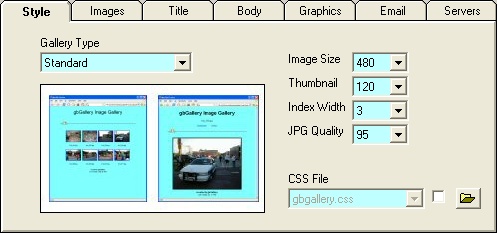
gbGallery provides five basic output formats, examples of which were
shown above. Use the Gallery Type dropdown list to select the format to be
used. Additionally, the maximum size (in pixels) of the thumbnails and
images may be selected. For index pages, the number of thumbnails per line
may be set. Finally, the quality (degree of compression) for both thumbnails
and re-sized images may be set. Higher numbers use lower compression but give
a better quality image.
The various gbGallery settings are inserted into the web pages as a CSS style.
Users may substitute an external CSS style of their own by selecting it from
the dropdown list found in this tab setting. The user-defined CSS file must
be placed in the CSS subfolder where gbGallery was installed.
|
Images Settings
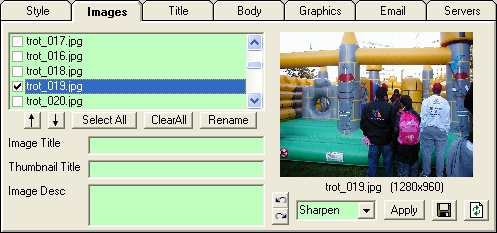
By default gbGallery will use all images found in a folder. However
by using these options a subset of the images in a folder may
be selected for inclusion in the gallery. Additionally, titles for
the images (both thumbnails and resized images) may be set. A description
for each resized image may also be entered.
The position of the images within the gallery may also be set using the
up/down arrows beneath the image list.
gbGallery also provides the ability to perform some very basic effects,
including rotation, on the images. The effects do not take affect until
the Save button is pressed. Once Save is pressed the effects are permanent
and replace the original file.
The dropdown effects list shows the special affects availble. You must press the
apply button to see the effect but until the Save button is pressed the
effect will not become permanent.
|
Title Settings
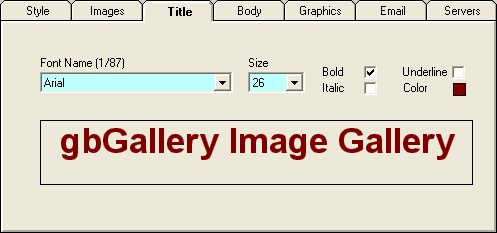
The title displayed on all gallery pages may be
formatted with the settings on this tab. A sample
of the result is shown at the bottom of the tab.
|
Body Settings
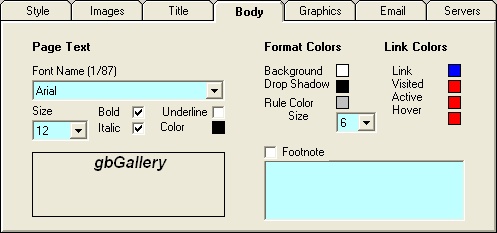
The format of the text in the body of the gallery
pages may be set using the options in this tab.
Additionally various color settings may also
be set from this tab.
This tab also provides for entry of an optional footnote to
be used on the gallery pages.
|
Graphics Settings
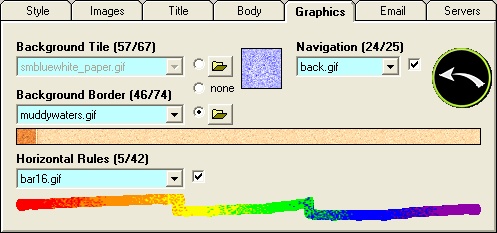
In addition to the thumbnails and resized images, gbGallery
provides additional graphic elements for use in the
gallery pages. The background (either as a tiled texture
or full-width border), horizontal rules, and navigation
buttons may be selected by the user.
These images are distributed with gbGallery. Users may add
their own images by placing the graphics files in the corresponding
subfolders of the gbGallery installation folder.
|
Email Settings
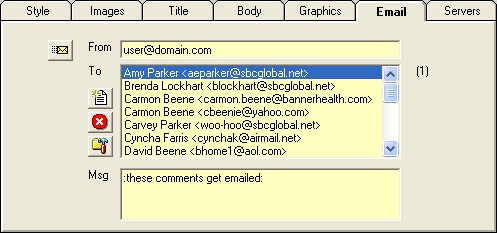
This tab provides a simple email address book function.
Addresses may be added, deleted, or edited. Pressing the
Send Email button sends an email to all selected addresses.
The email contains the Internet address (URL) of the gbGallery files.
A short message may also be included in the email.
|
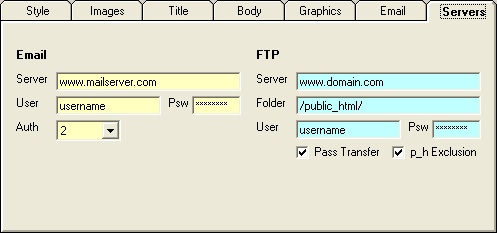
Server Settings
|
If you want to upload your galleries to a server and then email the URL
to friends, you'll need to enter the various server settings as shown in the
image above.
Email
This is the server which will process your outgoing emails.
- Server
The SMTP server where you receive your email
- User/Psw
The user name and password needed to access the server
- Auth
Authentication type (1-PoP3, 2-Auth Login, 3-Auth Plain). Not all servers
required pop3 authentication. Check with you service provider to determine
the type of authentication required.
FTP Server
This is the server where the gallery files are to be uploaded.
- Server
The name of the server to which the image will be transferred.
- Folder
The folder on the server to which the image will be transferred.
The folder must already exists on the server.
- User/Psw
The user name and password needed to access the server
- Passive Transfer
Tells gbGallery to use passive transfer mode during FTP of the gallery files to the server.
- p_h
Some servers do not allow a URL to contain "public_html" where this is the root directory
for a user. Selecting this will cause gbGallery to delete the "public_html" from the URL
used to view the HTML pages.
Return to top of document
Notes/Issues/Future Features
gbGallery has been tested on Windows XP and Windows 2000.
If you have any problems using it on your system, please let me know.
